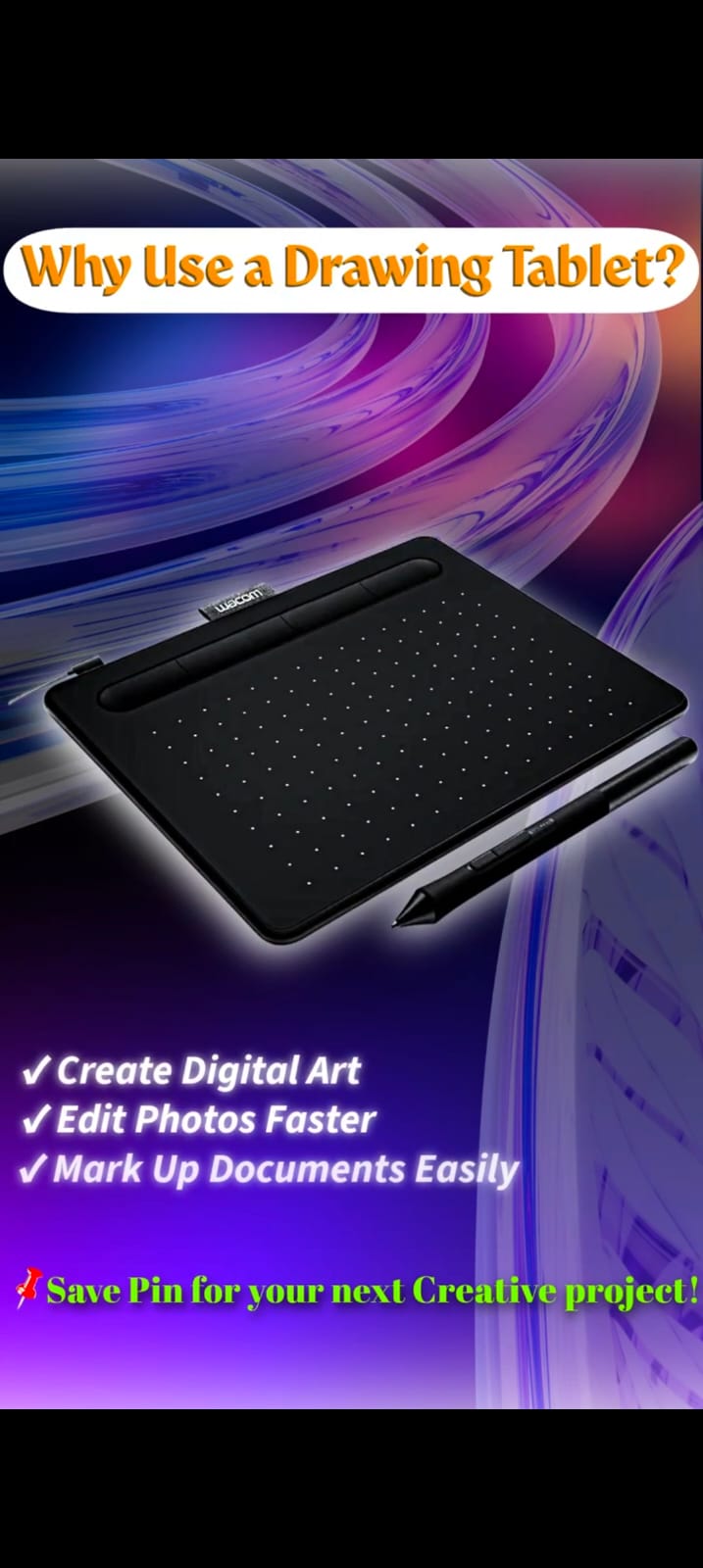
Product Overview
Pressure-sensitive pen tablet for digital art, photo editing & graphic design.
Who Should Buy This
✓ Good fit if…
Anyone shopping in the Drawing Tablets category for the features listed on this page.
✗ Consider alternatives if…
anyone who wants to draw directly on a screen (this tablet has no display), or who specifically needs pen tilt detection, a higher pressure-level count, or a larger active area than the Small and Medium sizes — Wacom positions its Intuos Pro line for those needs.
Advantages
- Pressure-Sensitive Pen
- Works with PC/Mac
- Beginner-Friendly Pen Tablet
- Compact Design
Understanding the Key Specs
The two specs that matter most on any pen tablet are pressure sensitivity (how many levels of force the pen can register, which controls line weight and shading control) and active area (the physical drawing surface size, which should roughly match your monitor's aspect ratio so hand movement maps predictably to cursor movement). Report rate and tilt support matter more for inking and brush-style work than for line art.
Limitations
Wacom's specifications describe a pen tablet with no built-in display and no multi-touch, so you draw on the tablet surface while watching your monitor. A driver download is required on Windows and Mac. Small and Medium sizes are sold under the same Intuos name with different active areas, and some models add Bluetooth, so confirm the size and model shown on the Amazon listing you open.
Detailed Feature Breakdown
Pressure-Sensitive Pen
Wacom lists the Intuos pen (Wacom Pen 4K) at 4,096 levels of pressure sensitivity, so pressing harder or lighter changes line weight or opacity in apps that support pressure. The pen is battery-free (electromagnetic resonance), so it never needs charging.
Works with PC/Mac
Wacom's spec sheet lists Windows 7 or later and macOS 10.15 or later, plus Android 6.0 or later (with OTG support) and ChromeOS. A driver download is needed on Windows and Mac only, and the ExpressKeys shortcut buttons are supported on Windows and Mac.
Beginner-Friendly Pen Tablet
Wacom's own Intuos page says the tablet offers beginners everything expected from a graphics tablet, and Wacom separately sells the Intuos Pro as its flagship for professional needs. The Intuos spec sheet lists 4,096 pressure levels and does not list pen tilt, while Wacom's Intuos Pro (2025) page lists 8,192 levels and ±60° tilt — worth weighing against how you actually work.
Compact Design
Wacom lists the Intuos at about 8.8 mm thick, in Small and Medium sizes. The active drawing area is smaller than the tablet body: roughly 6.0 × 3.7 in (152 × 95 mm) on Small and 8.5 × 5.3 in (216 × 135 mm) on Medium, per Wacom's approximate figures.
Real-World Use Cases
Anyone shopping in the Drawing Tablets category for the features listed on this page. Wacom's product page frames the Intuos around digital drawing, painting and photo editing, and notes that it also connects to Chromebooks and Android devices for drawing and painting there.
How Beginners vs. Professionals Choose
Beginners are usually better served by a smaller, cheaper pen tablet with a shorter learning curve — the hand-eye coordination of looking at a screen while drawing on a separate surface takes practice regardless of price. Professionals doing paid illustration or animation work tend to value a larger active area and higher pressure-level counts because those differences become noticeable in fine detail work over long sessions.
Common Buying Mistakes
The most common mistake is buying a screen tablet (where you draw directly on the display) when a cheaper pen tablet would have taught the same fundamentals for a fraction of the cost. The second is judging a tablet purely on pressure-level count — 8,192 vs 16,384 levels is not perceptible to most human hands; software compatibility and driver stability matter more day to day.
Buying Considerations
Before buying anything in the drawing tablets category, confirm current price, seller, and return policy directly on the Amazon listing — those details can change after this page was published on 2026-07-24.
It's worth upgrading from an entry-level pen tablet once you're doing paid work and you notice yourself fighting the tablet's active area size or its driver software, rather than on any fixed timeline.
Setup & Compatibility
- Works with PC/Mac
Per Wacom's spec sheet: connect the tablet with the included USB cable, then download and install the driver from Wacom's website (Windows and Mac; internet access needed). Wacom lists a standard USB Type-A connection, so some Macs may need a USB-C adapter. Driver installation applies to Windows and Mac only; Android needs OTG support. Wacom also offers optional downloadable creative software that requires a Wacom ID and product registration — offers depend on region and operating system.
Maintenance & Care
Wacom's what's-included list has three extra standard nibs stored inside the pen and a nib-removal tool at the end of the pen. Additional standard nibs and optional felt or flex nibs are sold separately by Wacom, so a worn nib can be swapped rather than replacing the pen.
Frequently Asked Questions
Is this available to ship outside India?
Yes — this page includes both an India Amazon link and a separate US Amazon link, and the "Buy on Amazon" button below routes automatically based on your location.
Is this an affiliate link?
Yes. See the affiliate disclosure below — buying through the link may earn this site a small commission at no extra cost to you.
Does the Wacom Intuos need a driver?
On Windows and Mac, yes — Wacom's spec sheet says the driver must be downloaded from Wacom's website for the tablet to work. Wacom lists driver installation as applying to Windows and Mac only; Android and ChromeOS are listed as compatible without it.
How is the Intuos different from the Intuos Pro?
Per Wacom's product pages, the Intuos uses the Wacom Pen 4K with 4,096 pressure levels, while the Intuos Pro (2025) uses the Wacom Pro Pen 3 with 8,192 pressure levels and ±60° tilt detection. Wacom presents the Intuos for beginners and the Intuos Pro as its flagship for professional needs.
Pairs Well With
Genuinely complementary gear from this site's catalog — not a purchase-behavior claim, just editorial pairing by what the products are actually used together for.
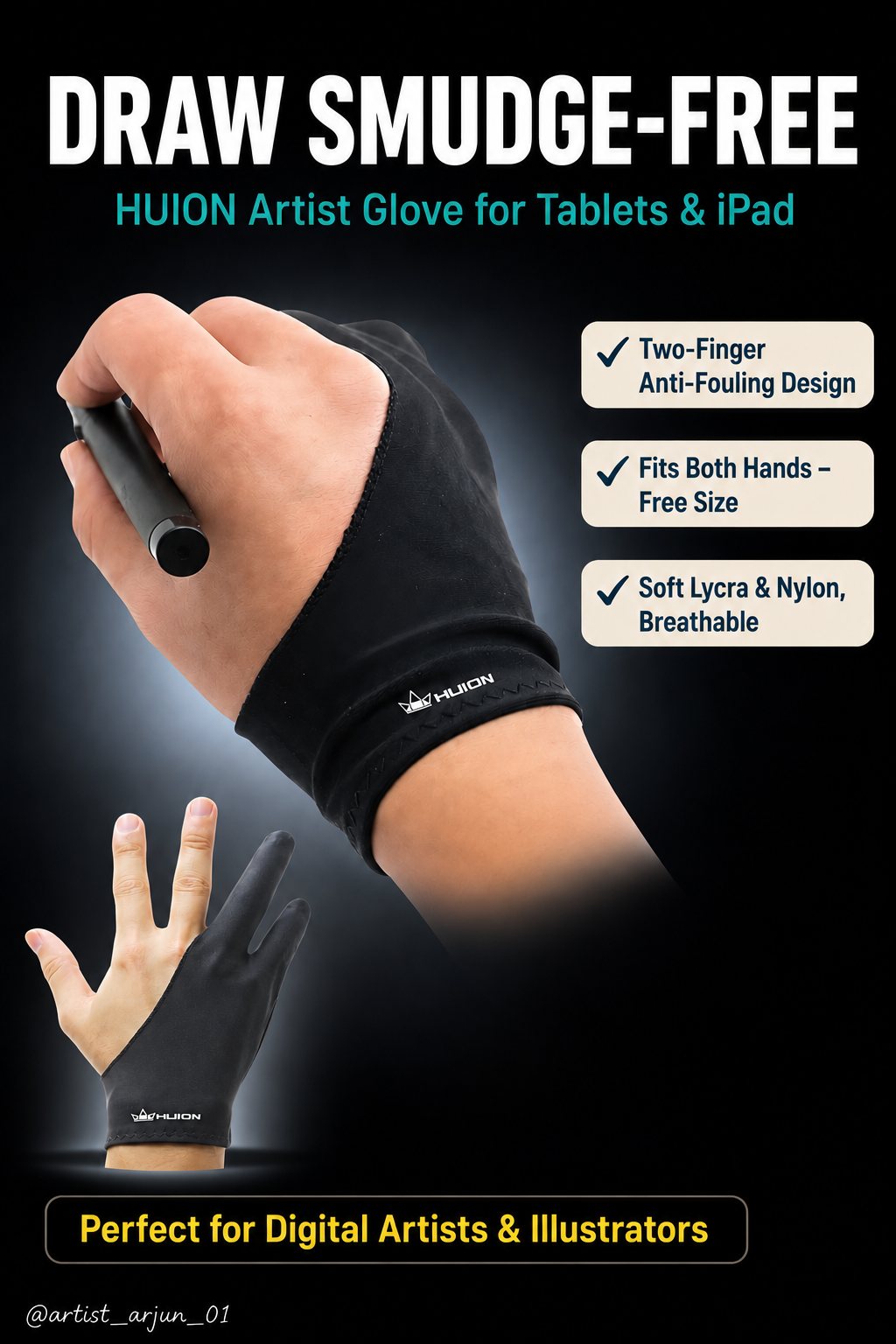 HUION Artist Glove for Drawing Tablet & iPad
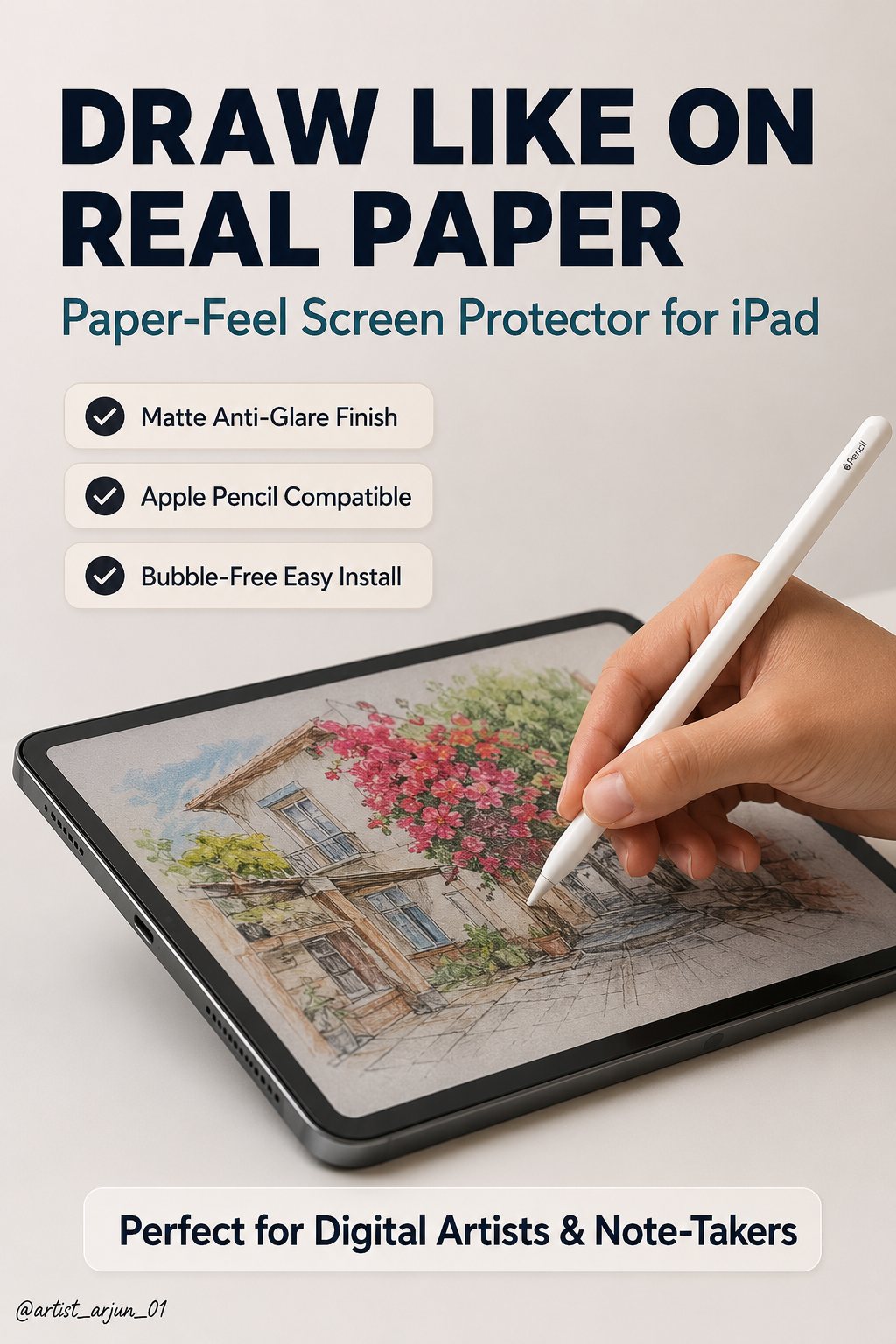 ESR Paper-Feel Screen Protector for iPad
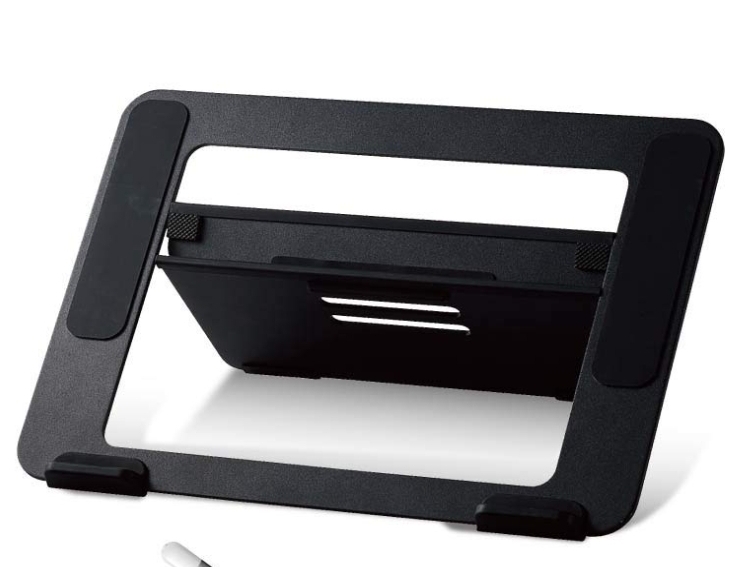 ELECOM Aluminum Drawing Tablet Stand
Alternatives & Similar Products
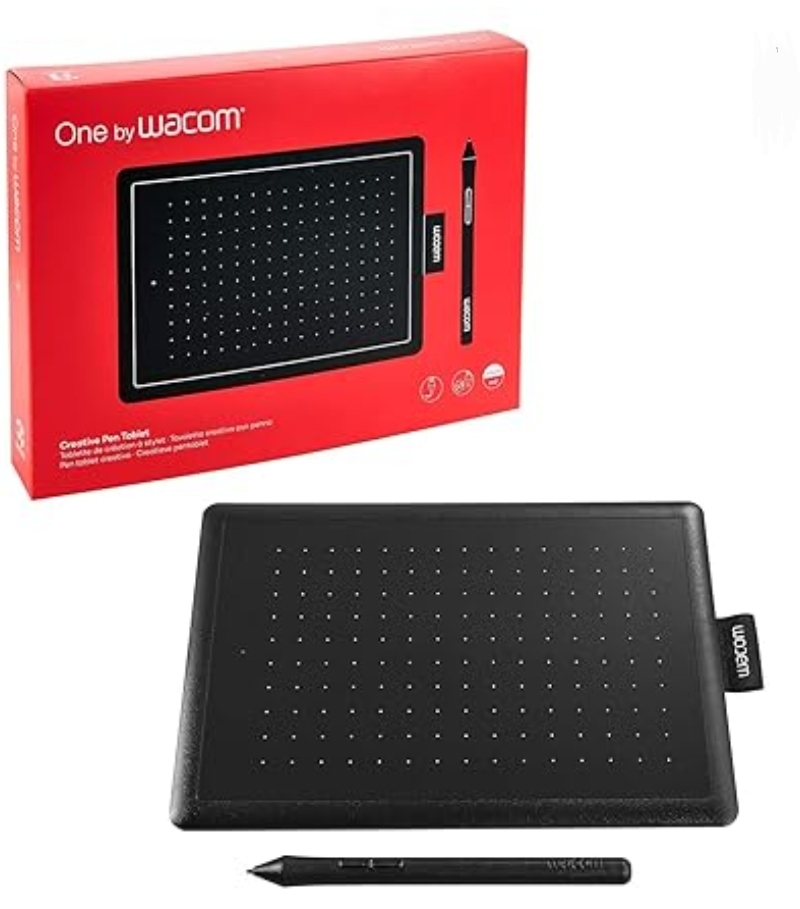
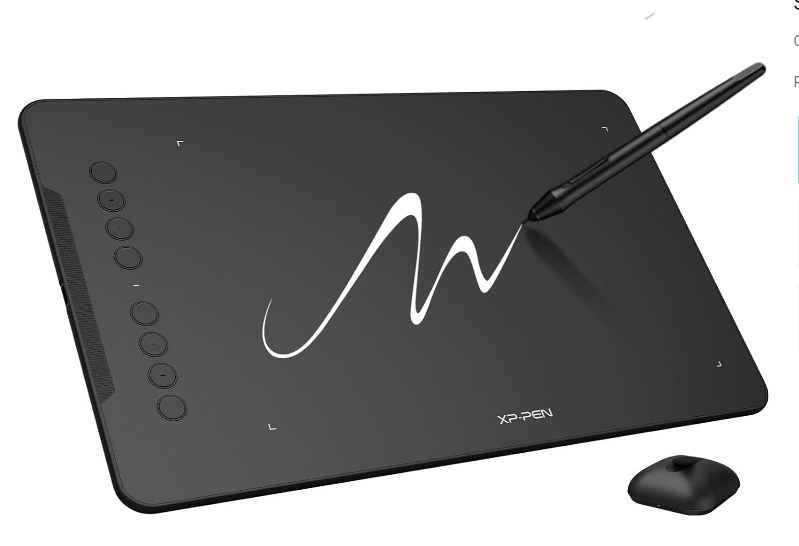
How It Compares
| Feature | Wacom Intuos Drawing Tablet | One by Wacom Small Digital Drawing Tablet | XP-Pen Deco 01 V3 Tablet |
|---|---|---|---|
| Category | Drawing Tablets | Drawing Tablets | Drawing Tablets |
| Key feature #1 | Pressure-Sensitive Pen | 2048 Pressure Levels | 16,384 Pressure Levels |
| Key feature #2 | Works with PC/Mac | Battery-Free Pen | Full Accessory Bundle Included |
Price and star-rating rows are intentionally omitted — this site doesn't display numbers it can't verify in real time. Check each product's current price and rating directly on Amazon.
Final Verdict
Weigh the features and fit above against your own needs, then check the current price, availability, and customer feedback on the Amazon listing linked below.
Affiliate disclosure: this is an Amazon affiliate link. Buying through it may earn this site a small commission at no extra cost to you — see the full Editorial Policy.
Related Buying Guides & Articles
- The Complete Beginner's Guide to Drawing Tablets
- Screen Tablet vs. Pen Tablet vs. iPad for Digital Art
- How to Choose Between Wacom, XP-Pen, and Huion
- Understanding Pressure Sensitivity: Why 8K vs. 16K Levels Rarely Matters